
Integrating Ninja Form with Form Vibes
If you're using Ninja Forms and want better control over your form submissions, you can integrate it with Form Vibes.
Form Vibes automatically captures submissions made through Ninja Forms and stores them in the WordPress database. This gives you a centralized dashboard to view, filter, export, and analyze form entries.
Now let's see how can you integrate Ninja Form with Form Vibes.
Install Required Plugins
Before starting, make sure:
- Ninja Forms is installed and activated
- Form Vibes is installed and activated
- Your form is published and working
No extra setup or connection is required. The integration works automatically.
How Ninja Forms Submissions Are Captured by Form Vibes
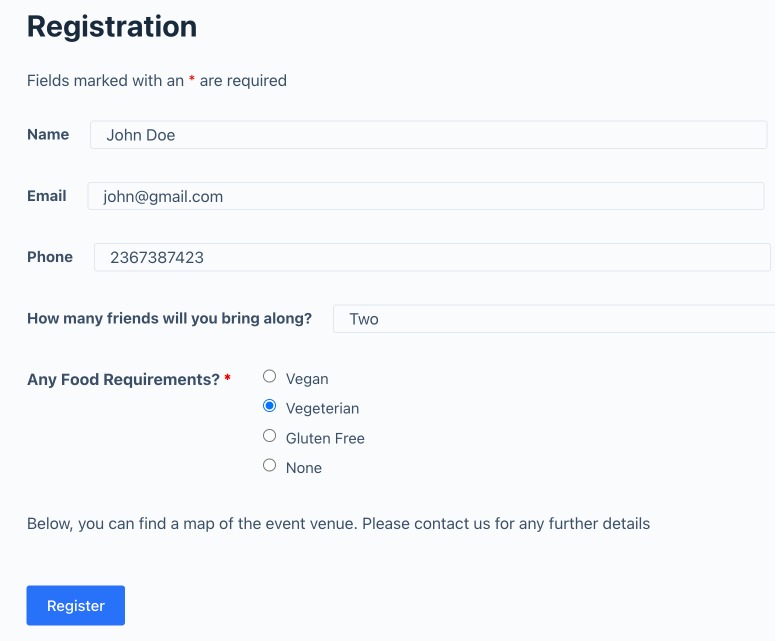
Once both plugins are active and user started submitting the entries, Form Vibes automatically captures submissions made through Ninja Forms.
When a user submits a form:
- Ninja Forms processes the submission
- Form Vibes stores a copy of the submission in the WordPress database
- Entries become visible under Form Vibes → Submissions
Submissions are grouped by form name for easier identification.
Managing Ninja Forms Submissions in Form Vibes
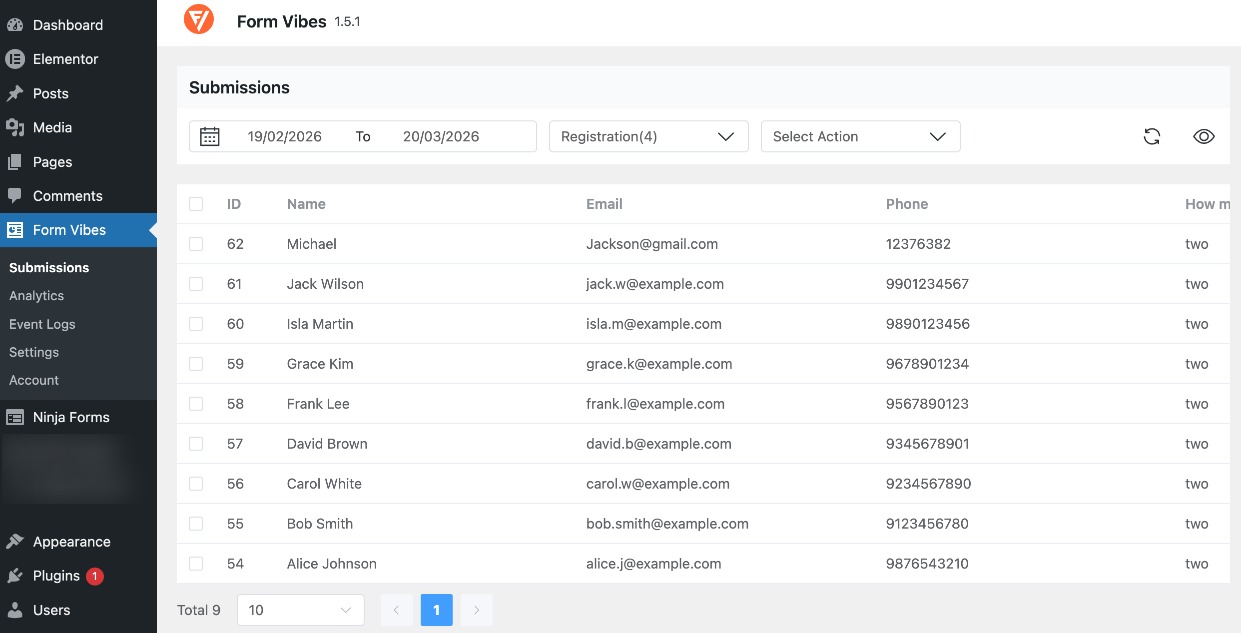
To see where to save Ninja Form submission in form vibes, navigate to Form Vibes -> Submissions.
With form vibes free version, you can easily:
- View submissions in a table format
- Filter submissions by date
- Delete unwanted entries
- Export submissions as CSV
- View basic submission analytics
This makes it easier to manage entries compared to reviewing them individually.
Advanced Management with Form Vibes Pro
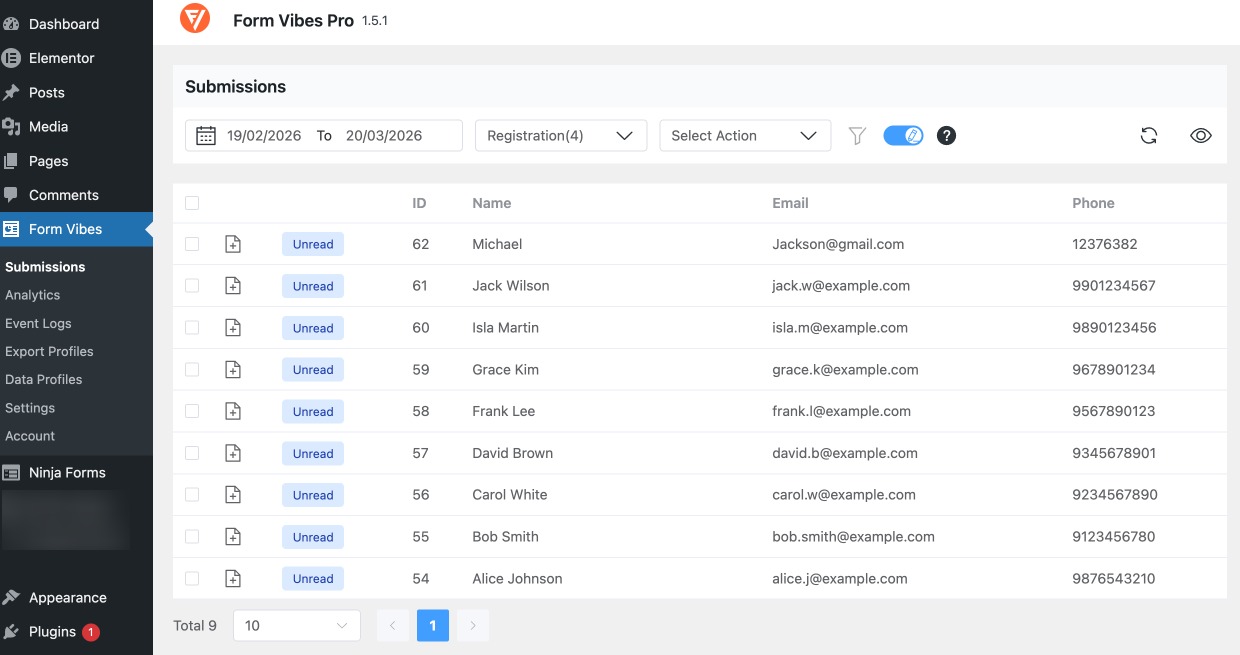
If you upgrade to Form Vibes Pro, you unlock additional features such as:
- Change submission status (Read, Unread, Spam)
- Edit form submission details
- Apply advanced filtering
- Create Data Profiles to display submissions on the frontend
- Export entries using custom conditions
These features are helpful for websites that receive a large number of form submissions.
To explore all Pro features, visit our form vibes website.
What Happens If “Record Submission” Is Disabled in Ninja Form?
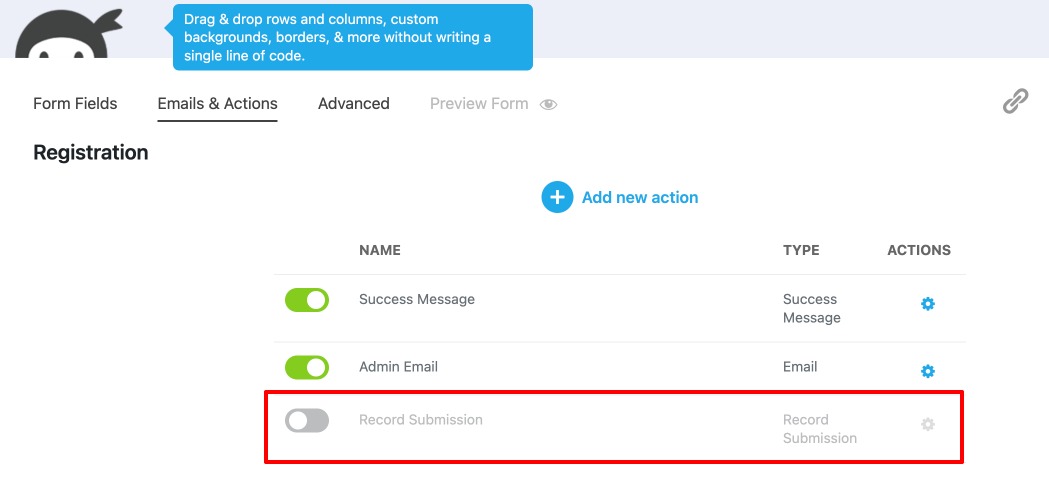
In Ninja Forms, entries are stored only if the Record Submission action is enabled.
To check this:
- Go to Ninja Forms → Dashboard
- Edit your form
- Open the Emails & Actions tab
- Locate the Record Submission action
Now here’s the important part:
- If Record Submission is enabled → The entry appears in both Ninja Forms and Form Vibes.
- If Record Submission is disabled → Ninja Forms will not store the entry, but Form Vibes will still capture and store it.
- Submissions can be viewed inside Form Vibes -> Submissions.
This ensures your data is not lost even if Ninja Forms’ internal storage is turned off.