
Integrating Gravity Form with Form Vibes
This documentation explains how Gravity Forms integrates with Form Vibes, how submissions are captured, and how you can manage Gravity Forms entries using Form Vibes.
Gravity Forms stores submissions in the WordPress database by default. When Form Vibes is installed and activated, it automatically captures Gravity Forms submissions and displays them in a centralized dashboard for better management and analytics.
This doc covers:
- How integration works
- Where to view Gravity Forms entries in Form Vibes
- How to manage submissions efficiently
How Gravity Forms Works with Form Vibes
Once both plugins are installed and activated:
- Gravity Forms handles form creation and frontend submission.
- Form Vibes listens for successful form submissions.
- Form Vibes stores submission data in its own database table.
- Entries become available under the Form Vibes dashboard.
- No additional configuration is required to enable the integration.
Form Vibes automatically detects Gravity Forms submissions after activation.
How to Integrate Gravity Forms with Form Vibes
Follow these steps to verify integration:
Step 1: Install and Activate Both Plugins
- Install and activate Gravity Forms.
- Install and activate Form Vibes.
Step 2: Create a Gravity Form
- Go to Forms → New Form
- Add fields
- Save the form.
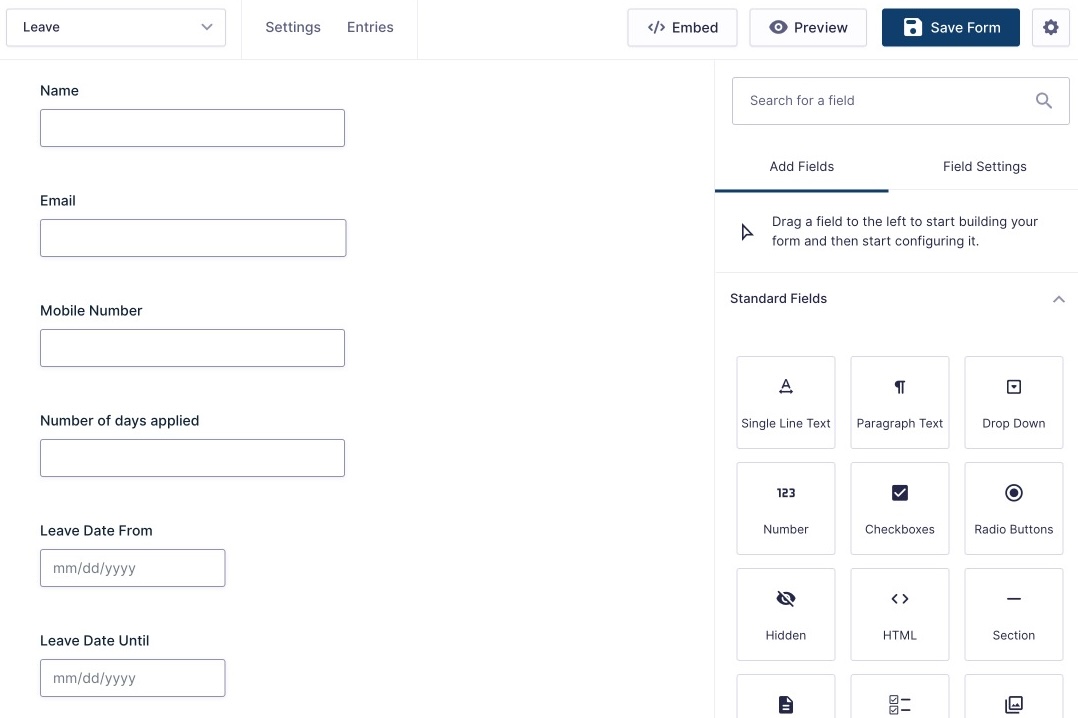
Step 3: Embed and Submit a Test Entry
- Embed the form on a page using shortcode or block.
- Submit a test entry from the frontend
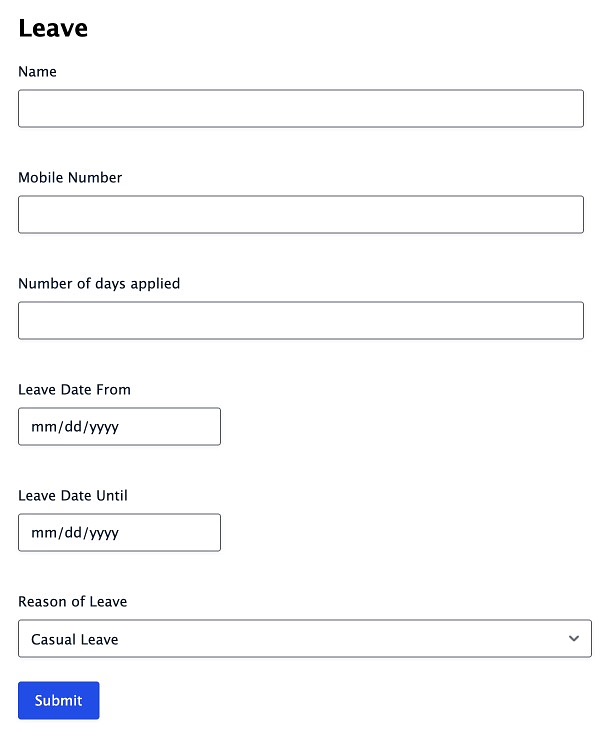
Step 4: Verify Submission in Form Vibes
- Navigate to Form Vibes → Submissions
- Select the Gravity Form from the dropdown
- Confirm the test entry appears in the list
If the entry appears, the integration is working correctly.
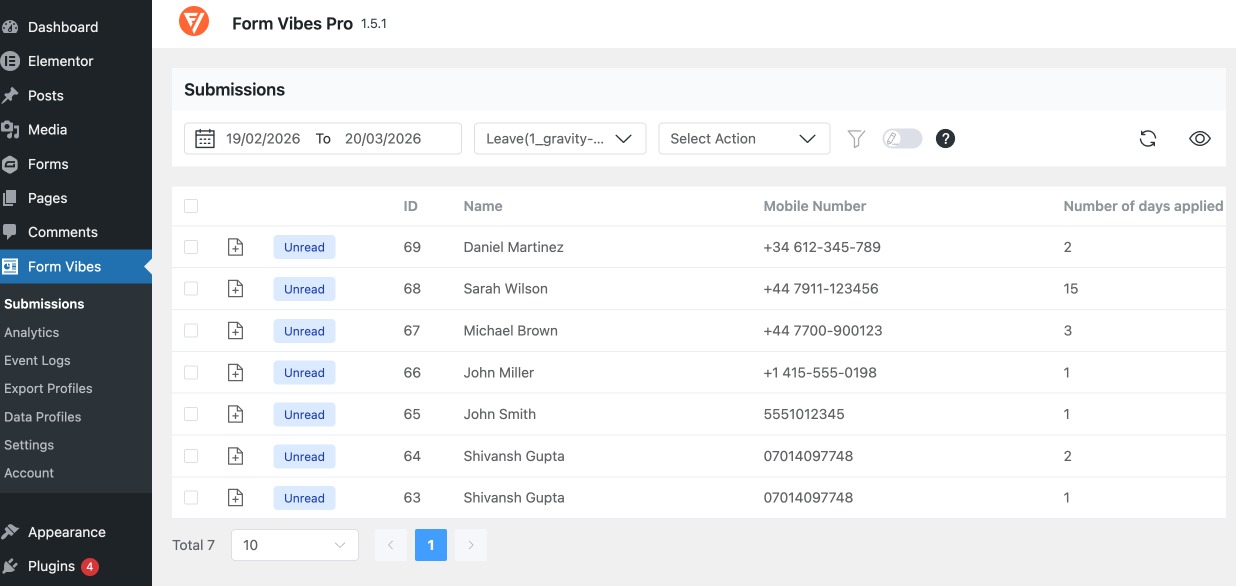
Managing Gravity Forms Entries in Form Vibes
Once Gravity Forms submissions are captured, you can manage them from Form Vibes → Submissions. This gives you a centralized workflow for handling entries without jumping between multiple dashboards.
Below are the key management options available in Form Vibes for Gravity Forms submissions.
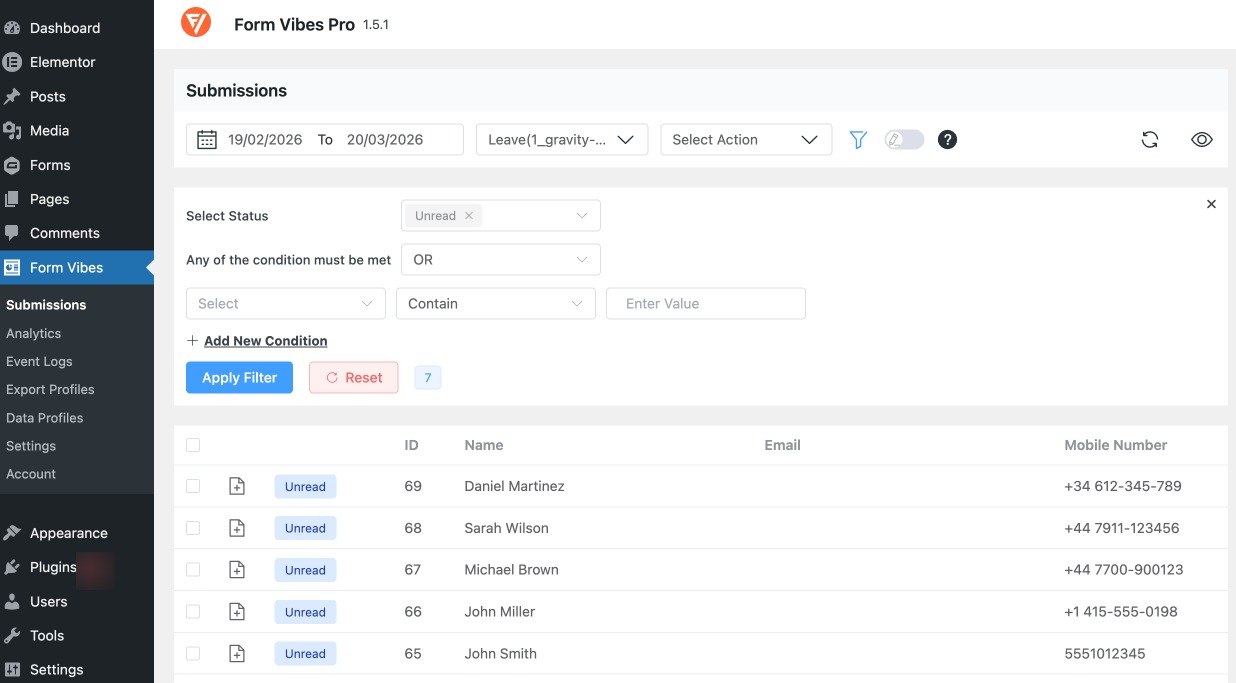
Advanced Filtering
Form Vibes helps you find the exact submission you’re looking for using advanced filters. Instead of browsing entries manually, you can narrow down results using filters such as:
- Date range (today, last 7 days, custom date range, etc.)
- Specific form fields (like Name, Email, Phone, dropdown selections, etc.)
- Submission status (Read, Unread, Spam)
- Page URL / source page (helpful when the same form is used on multiple pages)
This makes it easier to handle large volumes of submissions and quickly locate specific entries (e.g., “all leads from last week” or “entries containing a certain email domain”).
To learn how filtering works in detail, read the Form Vibes Filtering documentation.
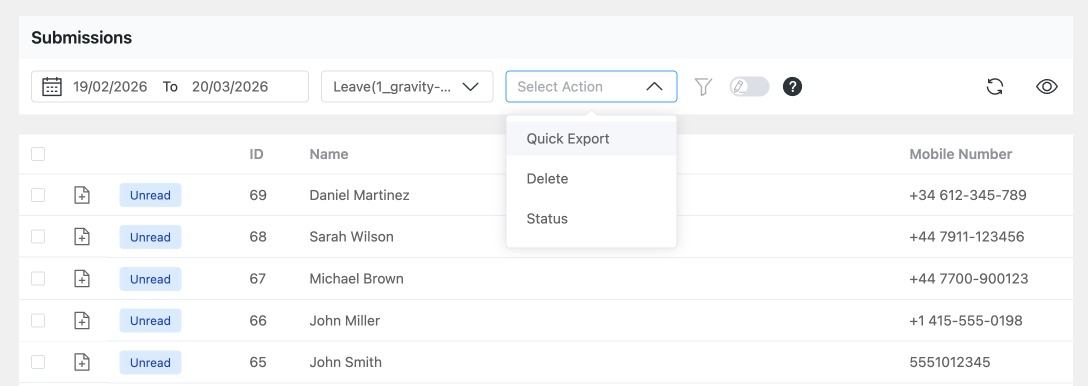
Export Entries as CSV
You can export Gravity Forms submissions from Form Vibes into a CSV file for reporting, backups, client sharing, or external analysis in Excel or Google Sheets.
Form Vibes export is useful when you want clean submission data without manually copying entries.
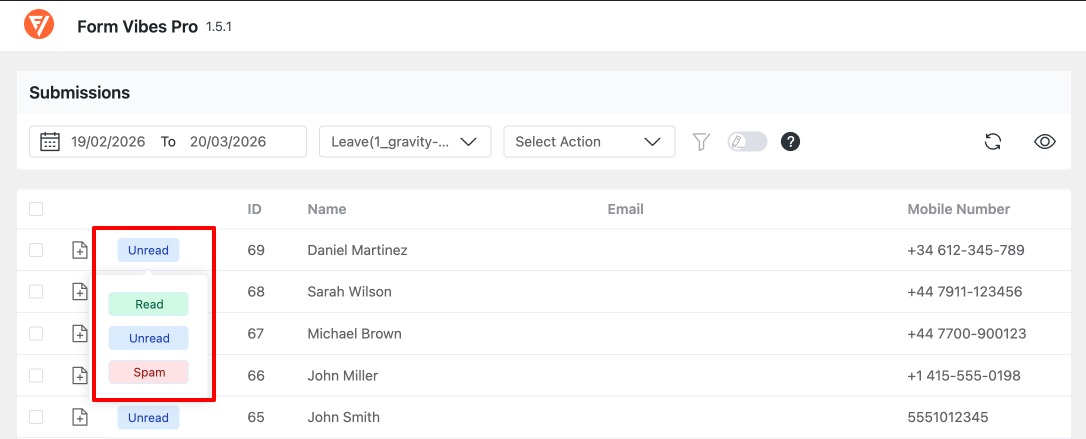
Change Submission Status
Form Vibes allows you to organize Gravity Forms submissions by assigning a status such as:
- Unread – newly received submissions
- Read – submissions you’ve already reviewed
- Spam – unwanted entries you want to separate
This is especially useful for teams where multiple users review submissions, because it adds clarity and workflow tracking directly inside the dashboard.
View Analytics and Submission Trends
Form Vibes provides an analytics view that helps you understand performance trends such as:
- Submission volume over time
- Which forms are receiving the most entries
- Changes in submission activity across days/weeks/months
This gives you visibility into how your Gravity Forms are performing and helps you track growth or diagnose drops in submissions.